http://www.goodui.org/
A Good User Interface has high conversion rates and is easy to use. In other words, it's nice to both the business side as well as the people using it. Here is a running list of practical ideas to try out. You've read all tips. Check back later.
A Good User Interface has high conversion rates and is easy to use. In other words, it's nice to both the business side as well as the people using it. Here is a running list of practical ideas to try out. You've read all tips. Check back later.
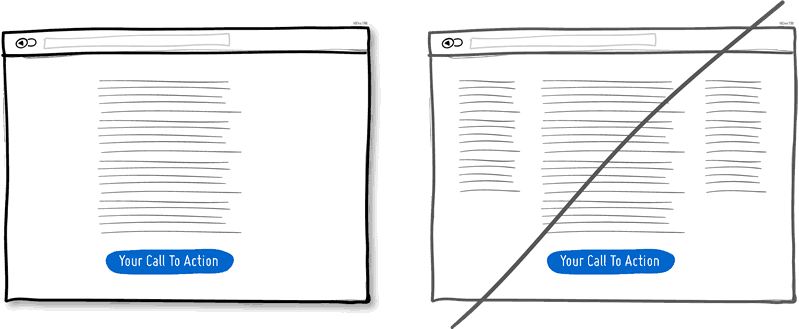
Try A One Column Layout instead of multicolumns.

 A one column layout will give you more control over your narrative. It
should be able to guide your readers in a more predictable way from top
to bottom. Whereas a multi column approach runs some additional risk of
being distracting to the core purpose of a page. Guide people with a
story and a prominent call to action at the end.
A one column layout will give you more control over your narrative. It
should be able to guide your readers in a more predictable way from top
to bottom. Whereas a multi column approach runs some additional risk of
being distracting to the core purpose of a page. Guide people with a
story and a prominent call to action at the end.
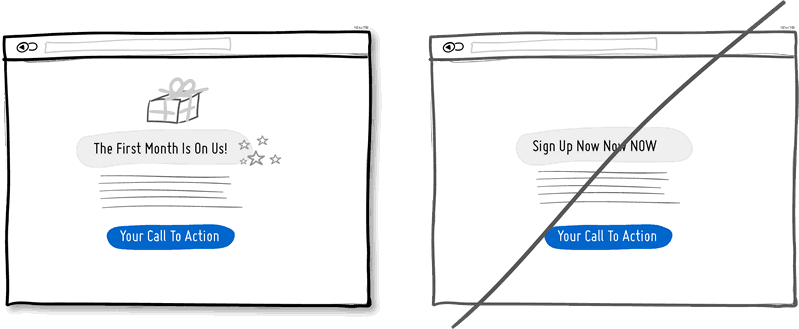
Try Giving a Gift instead of closing a sale right away.
A friendly gesture such as providing a customer with a gift can be just
that. Deeper underneath however, gifting is also an effective persuasion
tactic that is based on the rule of reciprocity. As obvious as it
sounds, being nice to someone by offering a small token of appreciation
can come back in your favour down the road.
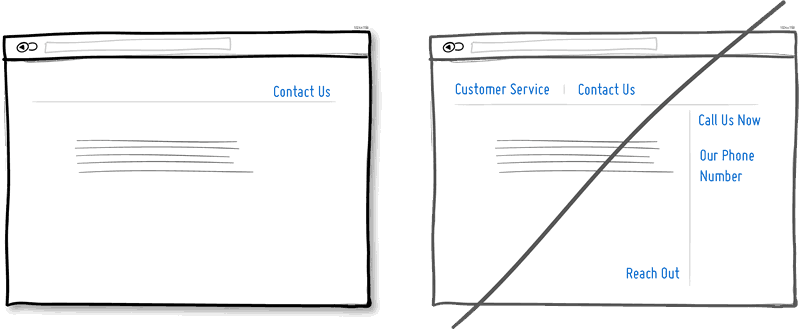
Try Merging Similar Functions instead of fragmenting the UI.
Over the course of time, it's easy to unintentionally create multiple
sections, elements and features which all perform the same function.
It's basic entropy - things start falling apart over time. Keep an eye
out for duplicate functionality labelled in various ways, as it puts a
strain on your customers. Often, the more UI fragmentation there is, the
higher the learning curve which your customers will have to deal with.
Consider refactoring your UI once in a while by merging similar
functions together.
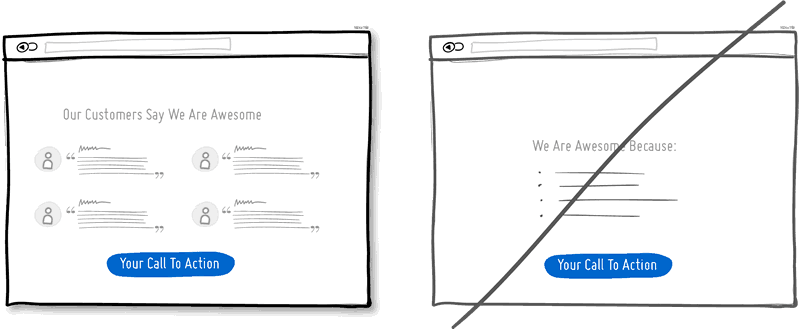
Try Social Proof instead of talking about yourself.
Social proof is another great persuasion tactic directly applicable to
increasing conversion rates. Seeing that others are endorsing you and
talking about your offering, can be a great way to reinforce a call to
action. Try a testimonial or showing data which proves that others are
present.
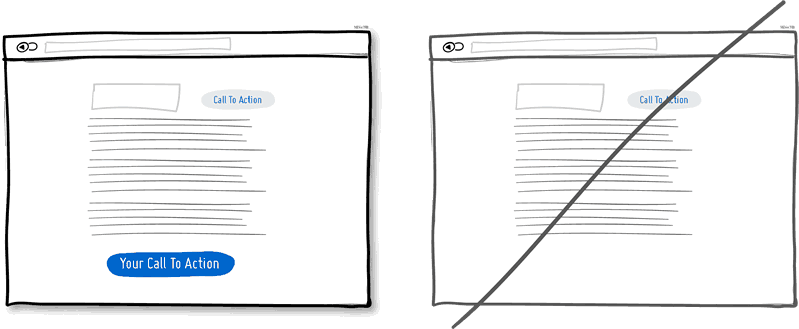
Try Repeating Your Primary Action instead of showing it just once.
Repeating your call to action is a strategy that is more applicable to
longer pages, or repeating across numerous pages. Surely you don't want
to have your offer displayed 10 times all on the same screen and
frustrate people. However, long pages are becoming the norm and the idea
of squeezing everything "above the fold" is fading. It doesn't hurt to
have one soft actionable item at the top, and another prominent one at
the bottom. When people reach the bottom, they pause and think what to
do next - a potential solid place to make an offer or close a deal.
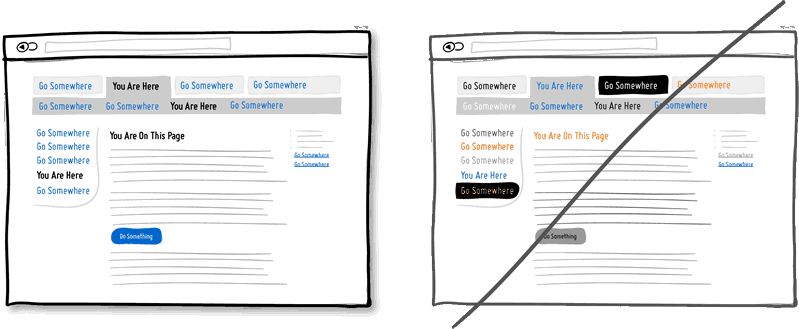
Try Distinct Styles Between Clickable And Selected Items instead of blurring them.
Visual styling such as color, depth, and contrast may be used as a
reliable cue to help people understand the fundamental language of
navigating your interface: where am I, and where can I go. In order to
communicate this clearly to your users, the styles of your clickable
actions (links, buttons), selected elements (chosen items), and plain
text should be clearly distinct from one another and then applied
consistently across an interface. In the visual example, I've chosen a
blue color to suggest anything that can be clicked on, and black as
anything that has been selected or indicates where someone is. When
applied properly, people will more easily learn and use these cues to
navigate your interface. Don't make it harder for people by blurring
these three functional styles.
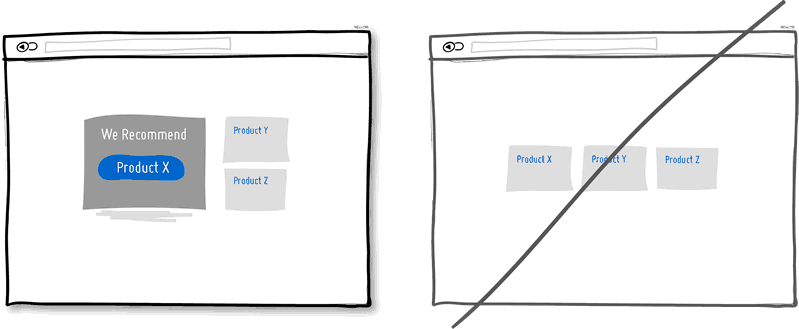
Try Recommending instead of showing equal choices.
When showing multiple offers, then an emphasized product suggestion
might be a good idea as some people need a little nudge. I believe there
are some psychology studies
out there which suggest that the more choice there is, then the lower
the chances of a decision actually being made and acted upon. In order
to combat such analysis paralysis, try emphasizing and highlighting
certain options above others.
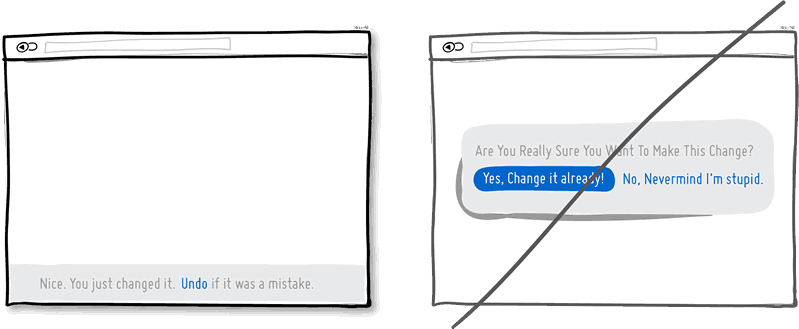
Try Undos instead of prompting for confirmation.
Imagine that you just pressed an action button or link. Undos respect
the initial human intent by allowing the action to happen smoothly first
and foremost. Prompts on the other hand suggest to the user that he or
she does not know what they are doing by questioning their intent at all
times.
I would assume that most of the time human actions are intended and only
in small situations are they accidental. The inefficiency and ugliness
of prompts is visible when users have to perform actions repeatedly and
are prompted numerously over and over - a dehumanizing experience.
Consider making your users feel more in control by enabling the ability
to undo actions and not asking for confirmation where possible.
Try Telling Who It's For instead of targeting everyone.
Are you targeting everyone or are you precise with your audience? This
is a conversion idea where you could be explicit about who exactly your
product or service is intended for. By communicating the qualifying
criteria of your customers, you might be able to actually connect more
with them while at the same time hinting at a feeling of exclusivity.
The risk with this strategy of course is that you might be cutting
yourself short and restricting potential customers. Then again,
transparency builds trust.
(Side note: Enjoying the little characters style? Please be sure to check out MicroPersonas.)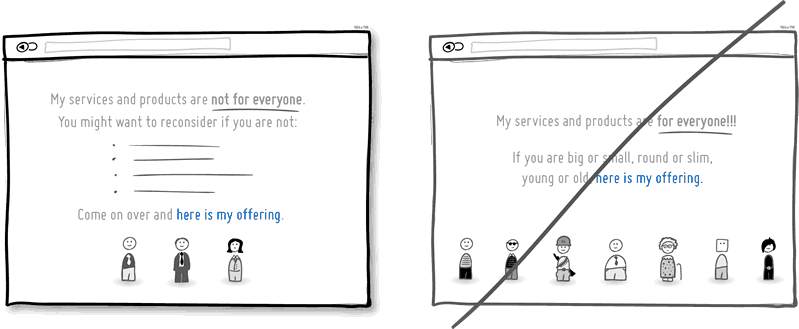
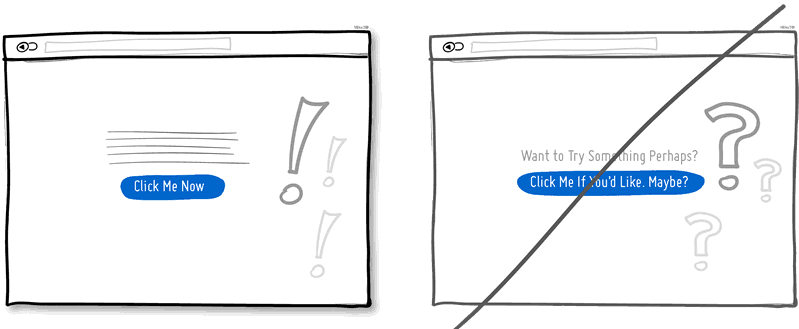
Try Being Direct instead of indecisive.
You can send your message with uncertainty trembling in your voice, or
you can say it with confidence. If you're ending your messaging with
question marks, using terms such as "perhaps", "maybe", "interested?"
and "want to?", then most likely you have some opportunity to be a bit
more authoritative. Who knows, maybe there is a bit more room for
telling people what to do next in the world of conversion optimization.
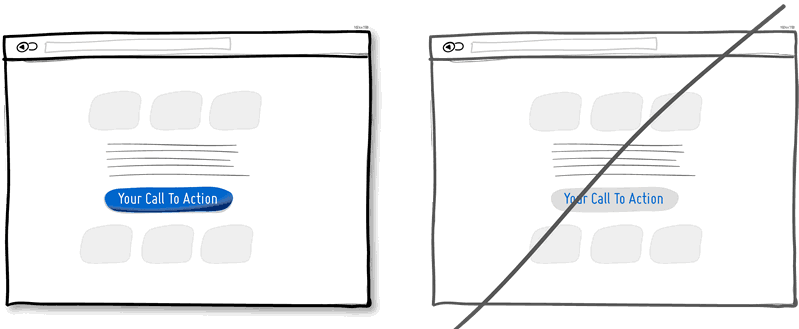
Try More Contrast instead of similarity.
Making your calls to action be a bit more prominent and distinguishable
in relation to the elements surrounding them, will make your UI
stronger. You can easily increase the contrast of your primary calls to
action in a number of ways. Using tone, you can make certain elements
appear darker vs. lighter. With depth, you can make an item appear
closer while the rest of the content looks like it's further (talking
drop shadows and gradients here). Finally, you can also pick
complementary colors from the color wheel (ex: yellow and violet) to
raise contrast even further. Taken together, a higher contrast between
your call to action and the rest of the page should be considered.
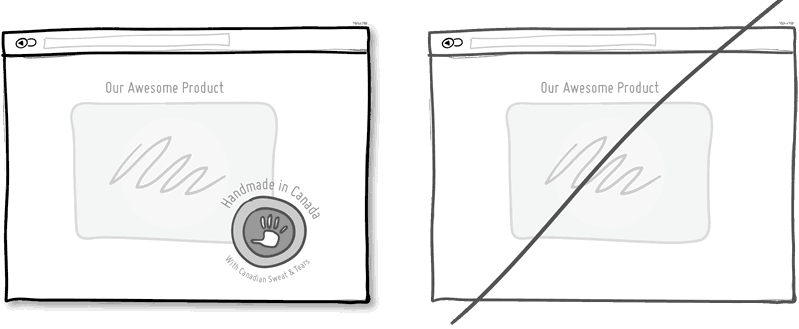
Try Showing Where It's Made instead of being generic.
Indicating where you, your product or service is from says quite a bit
subliminally while at the same time moves your communication to a more
personal level. Mentioning the country, state or city of origin is
surely a very human like way to introduce oneself. If you can do the
same virtually then you just might be perceived as a bit more friendly.
Often, stating where your product is being made at also has a pretty
good chance of making it feel of slightly higher quality. It's a win
win.
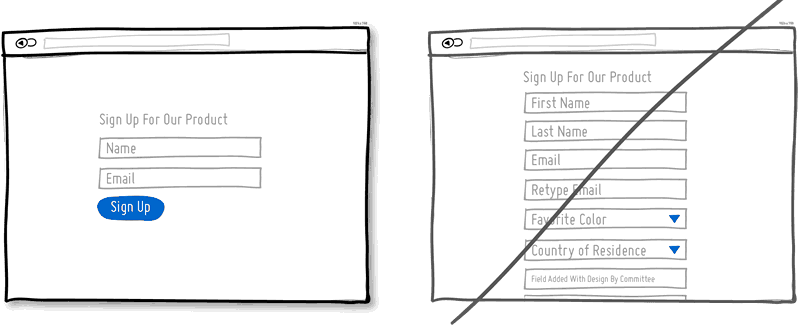
Try Fewer Form Fields instead of asking for too many.
Human beings are inherently resistant to labor intensive tasks and this
same idea also applies to filling out form fields. Each field you ask
for runs the risk of making your visitors turn around and give up. Not
everyone types at the same speed, while typing on mobile devices is
still a chore in general. Question if each field is really necessary and
remove as many fields as possible. If you really have numerous optional
fields, then also consider moving them after form submission on a
separate page or state. It's so easy to bloat up your forms, yet fewer
fields will convert better.
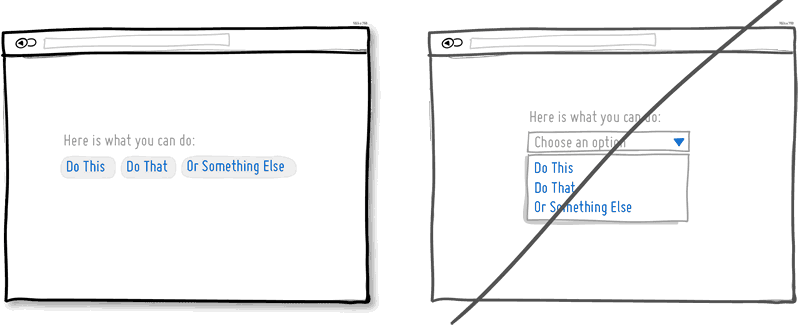
Try Exposing Options instead of hiding them.
Each pull down menu that you use, hides a set of actions within which
require effort to be discovered. If those hidden options are central
along the path to getting things done by your visitors, then you might
wish to consider surfacing them a bit more up front. Try to reserve pull
down menus for options that are predictable and don’t require new
learning as in sets of date and time references (ex: calendars) or
geographic sets. Occasionally pull down menu items can also work for
those interfaces that are highly recurring in terms of use - actions
that a person will use repeatedly over time (ex: action menus). Be
careful of using drop downs for primary items that are on your path to
conversion.
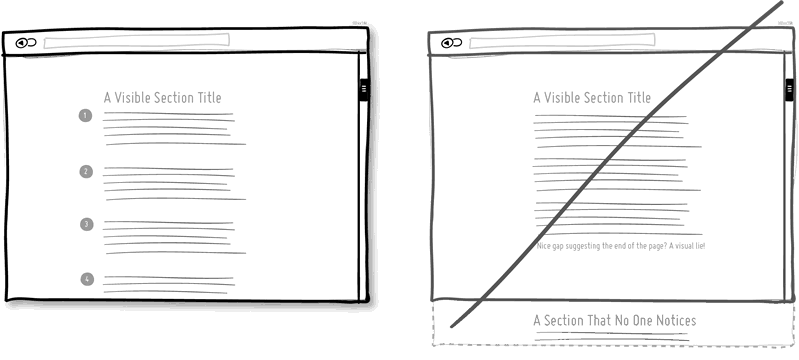
Try Suggesting Continuity instead of false bottoms.
A false bottom is a conversion killer. Yes, scrolling long pages are
great, but be careful of giving your visitors a sense that the page has
come to an end somewhere in between sections where it really hasn't. If
your pages will scroll, try to establish a visual pattern or rhythm that
the user can learn and rely on to read further down. Secondarily, be
careful of big gaps in around the areas of where the fold can appear (of
course I’m referring to a area range here with so many device sizes out
there).
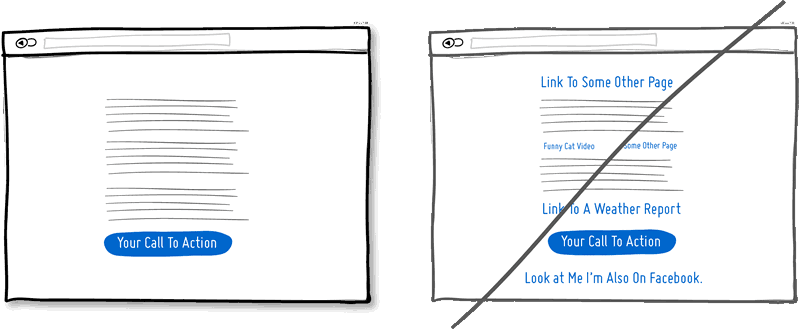
Try Keeping Focus instead of drowning with links.
It’s easy to create a page with lots of links going left and right in
the hope of meeting as many customer needs as possible. If however
you’re creating a narrative page which is building on towards a specific
call to action at the bottom, then think twice. Be aware that any link
above the primary CTA runs the risk of taking your customers away from
what you’ve been hoping them to do. Keep an eye out on the number of
links on your pages and possibly balance discovery style pages (a bit
heavier on the links) with tunnel style pages (with fewer links and
higher conversions). Removing extraneous links can be a sure way to
increase someone’s chances of reaching that important button.
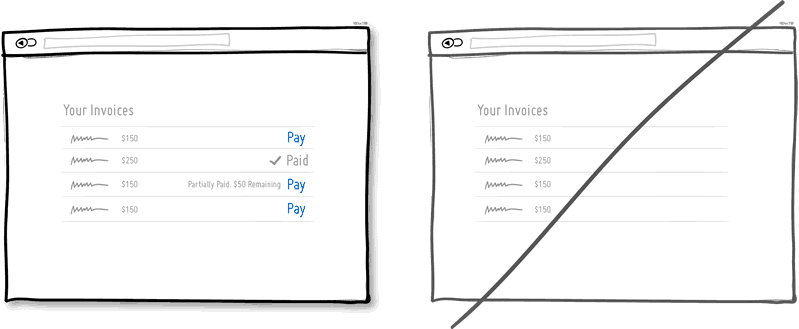
Try Showing State instead of being state agnostic.
In any user interface we quite often show elements which can have
different states. Emails can be read or unread, invoices can be paid or
not, etc. Informing users about the particular state in which an item is
in, is a good way of providing feedback. Interface states can help
people understand whether or not their past actions have been
successfully carried out, as well as whether an action should be taken.
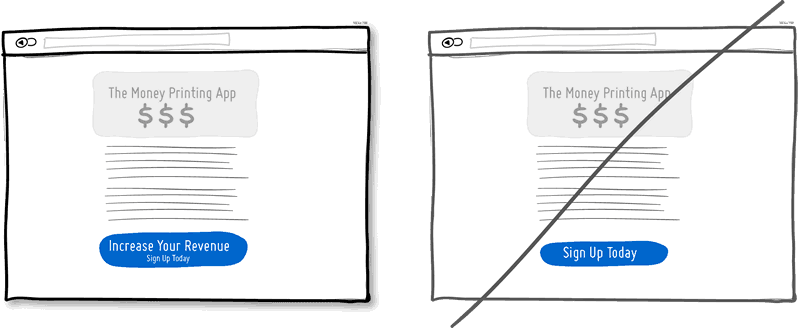
Try Benefit Buttons instead of just task based ones.
Imagine two simple buttons displayed on a page. One button tells you
that it will “Save You Money”, while the other one asks you to “Sign
Up”. I’d place my bets that the first one might have a higher chance of
being acted on, as a sign up on it’s own has no inherent value. Instead,
a sign up process takes effort and is often associated with lengthy
forms of some sort. The hypothesis set here is that buttons which
reinforce a benefit might lead to higher conversions. Alternatively, the
benefit can also be placed closely to where the action button is in
order to remind people why they are about to take that action. Surely,
there is still room for task based actions buttons, but those can be
reserved for interface areas that require less convincing and are more
recurring in use.
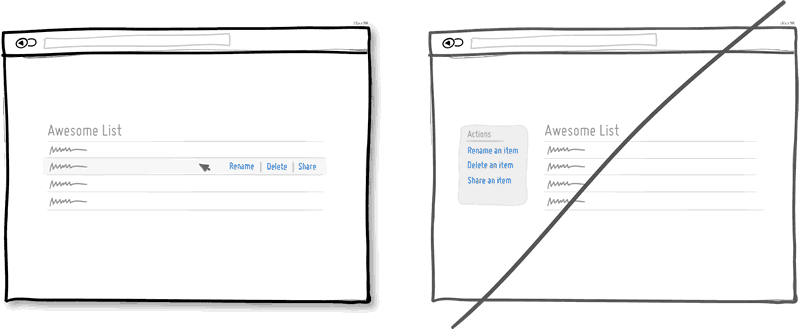
Try Direct Manipulation instead of contextless menus.
Occasionally it makes sense to allow certain UI elements to be acted
upon directly as opposed to listing unassociated generic actions. When
displaying lists of data for example, we typically want to allow the
user to do something with the items in the list. Clicking on, or
hovering over an item in this list can be used to express that a
particular item is to be manipulated (deleted, renamed, etc.). Another
example of common direct manipulation would be clicking on a data item
(say a text based address) which then turns into an editable field.
Enabling such interactions cuts through the number of required steps,
compared to if the same task was started more generally without the
context of the item - since selection is already taken care of. Do keep
in mind of course that for generic item-agnostic actions, there is
nothing wrong with contextless menus.
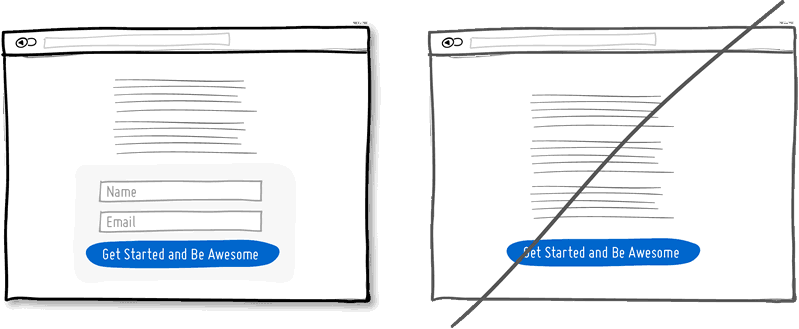
Try Exposing Fields instead of creating extra pages.
When creating landing pages that convey value, it can be beneficial to
show the actual form fields on the conversion page itself. Merging the
sign up form with the landing page comes with a number of benefits in
comparison to creating separate multi-page sign ups. First, we are
cutting out extra steps from the flow in general and the task at hand
takes less time. Secondly, by showing the number of form fields right
there, we are also providing the customer with a sense of how long the
sign up actually is. This of course is a little easier when our forms
are shorter in the first place (which of course they should be if
possible).
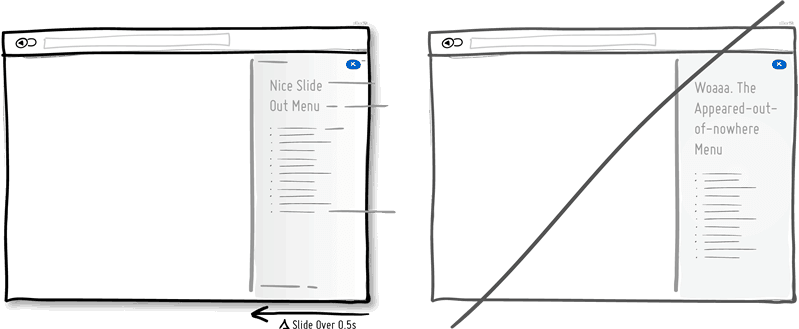
Try Transitions instead of showing changes instantly.
Interface elements often appear, hide, move, shift, and resize as users
do their thing. As elements respond to our interactions, it sometimes is
a little easier to comprehend what just happened when we sprinkle in
the element of time. A built in intentional delay in the form of an
animation or transition, respects cognition and gives people the
required time to understand a change in size or position. Keep in mind
of course that as we start increasing the duration of such transitions
beyond 0.5 seconds, there will be situations where people might start
feeling the pain. For those who just wish to get things done quickly,
too long of a delay of course can be a burden.
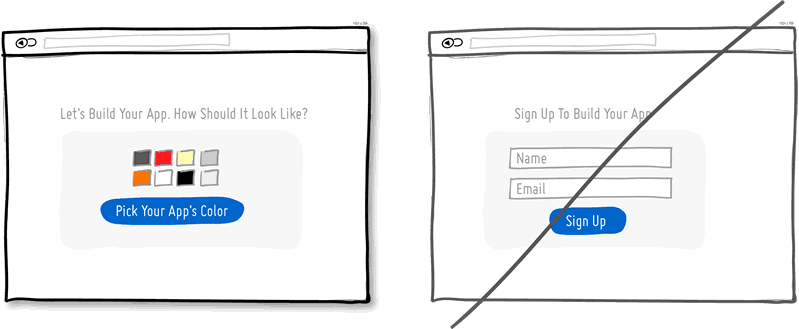
Try Gradual Engagement instead of a hasty sign up.
Instead of asking visitors to sign up immediately, why not ask them to
first perform a task through which something of value is demonstrated.
During such initial interactions the product can both show off its
benefits, as well as can lend itself to personalization. Once users
begin to see your product’s value and see how they can make it their
own, they will then be more open to sharing with you additional
information. Gradual engagement is really a way to postpone the sign up
process as much as possible and still allow users to use and customize
your application or product.
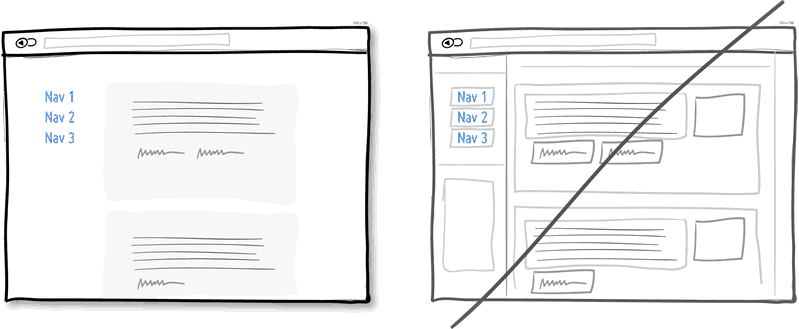
Try Fewer Borders instead of wasting attention.
Borders compete for attention with real content. Attention of course is a
precious resource since we can only grasp so much at any given time.
Surely borders can be used to define a space very clearly and precisely,
but they also do cost us cognitive energy as they are perceived as
explicit lines. In order to define relationships between screen elements
which use less attention, elements can also be just grouped together
through proximity, be aligned, have distinct backgrounds, or even just
share a similar typographic style. When working in abstract UI tools,
it’s easy to drop a bunch of boxes everywhere. Boxes however come with a
false sense of being immune from the order and unity which governs the
rest of the screen. Hence pages with lots of boxes sometimes may tend to
look noisy or misaligned. Sometimes it is helpful to throw in a line
here and there, but do consider alternative ways of defining visual
relationships that are less taxing to attention and your content will
come through.
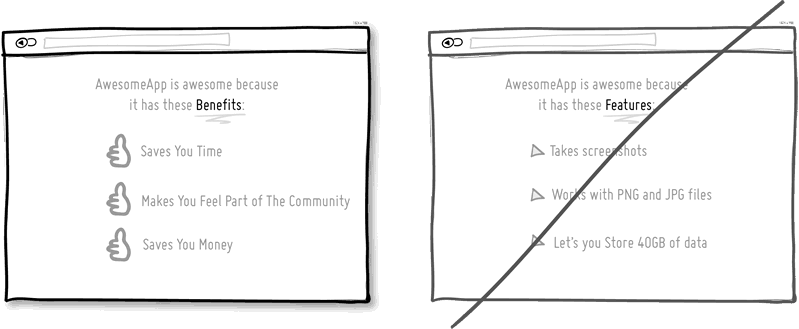
Try Selling Benefits instead of features.
I think this is Marketing 101. People tend to care less about features
than they do about benefits. Benefits carry with them more clearly
defined value. Chris Guillebeau in "The $100 Startup" writes that people
really care about having more of: Love, Money, Acceptance and Free
Time, while at the same time wishing for less Stress, Conflict, Hassle
and Uncertainty. When showing features, and I do believe that there is
still room for them occasionally, be sure to tie them back to benefits
where possible.
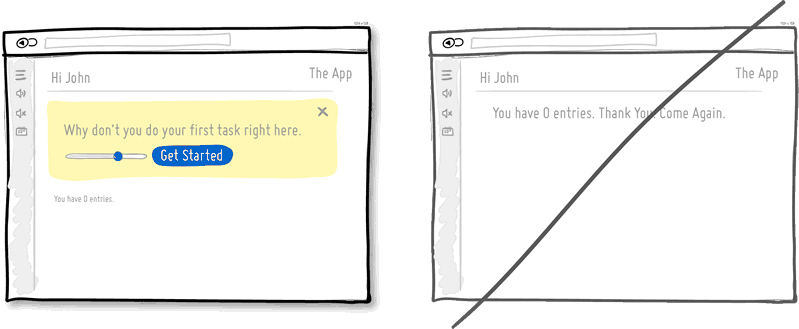
Try Designing For Zero Data instead of just data heavy cases.
There are cases when you will have 0, 1, 10, 100, or 10,000+ data
results which might need to be displayed somehow in various ways. The
most common of these scenarios is probably the transition from first
time use with zero data towards future use with a lot more data. We
often forget to design for this initial case when there is still nothing
to display whatsoever, and by doing so we run the risk of neglecting
users. A zero data world is a cold place. When first time users look at
your app and all it does is show a blank slate without any guidance then
you’re probably missing out on an opportunity. Zero data states are
perfect candidates for getting users across the initial hurdle of
learning by showing them what to do next. Good things scale and user
interfaces are no exception.
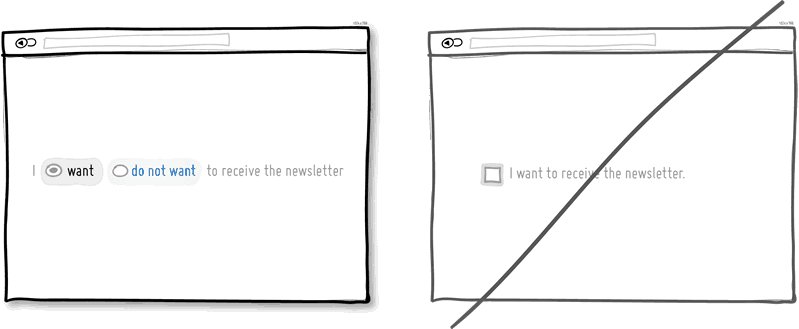
Try Opt-Out instead of opt-in.
An opt-out strategy implies that users or customers are defaulted to
take part in something without having to take any action. Alternatively,
there is also the more traditional opt-in strategy that requires people
to first take an action in order to take part in or receive something.
There are two good reasons why opt-out works better than opt-in. First
it alleviates resistance on the path of action, as the user does not
have to do anything. Secondly, it’s also a form of recommendation which
implies some kind of a norm - “since everyone else takes this as it is, I
might also do the same”.
Of course the opt-out strategy is often perceived as controversial as
there are those sleazy marketers which will abuse it. One such evil is
to diminish the readability of the opt-out text, while another is to use
confusing text, such as double negatives. Both examples will result in
users being less aware of actually signing up for something.
Hence to keep the ethics in check, if you do decide to go with an
opt-out approach, do make it very clear and understandable to your
customers what they are being defaulted into. After all, this tactic has
also been used in Europe to save lives.
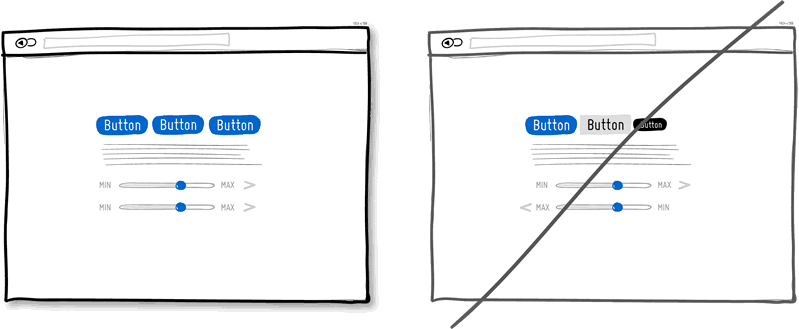
Try Consistency instead of making people relearn.
Striving for consistency in user interface design is probably one of the
most well known principles since Donald Norman’s awesome books. Having a
more consistent UI or interaction is simply a great way to decrease the
amount of learning someone has to go through as they use an interface
or product. As we press buttons and shift sliders, we learn to expect
these interaction elements to look, behave and be found in the same way
repeatedly. Consistency solidifies the way we learn to interact and as
soon as it is taken away, we are then forced back into learning mode all
over again. Consistent interfaces can be achieved through a wide
possible range of things such as: colors, directions, behaviors,
positioning, size, shape, labelling and language.
Before we make everything consistent however, please let’s bear in mind
that keeping things inconsistent still has value. Inconsistent elements
or behaviors come out into attention from the depths of our habitual
subconscious - which can be a good thing when you want to have things
get noticed. Try it, but know when to break it.
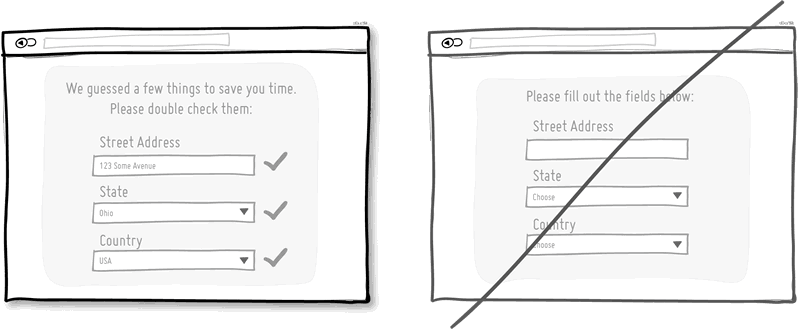
Try Smart Defaults instead of asking to do extra work.
Using smart defaults or pre-filling form fields with educated guesses
removes the amount of work users have to do. This is a common technique
for helping users move through forms faster by being respectful of their
limited time. One of the worst things from an experience and conversion
stand point is to ask people for data that they have already provided
in the past, repeatedly over and over again. Try to display fields that
are preloaded with values to be validated as opposed to asking for
values to be retyped each time. The less work, the better.
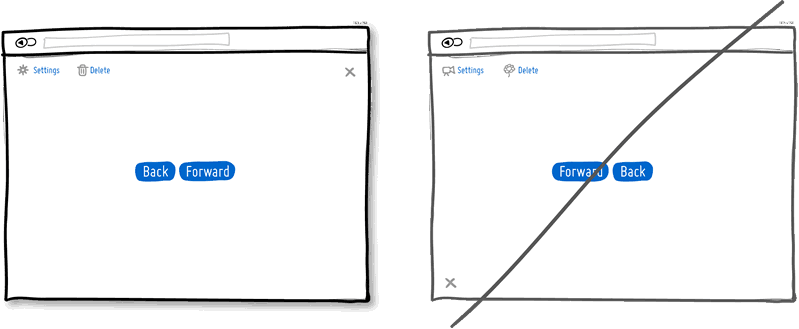
Try Conventions instead of reinventing the wheel.
Convention is the big brother of consistency. If we keep things similar
across an interface, people won’t have to obviously struggle as hard. If
on the other hand, we all keep things as similar as possible across
multiple interfaces, that decreases the learning curve even further.
With the help of established UI conventions we learn to close screen
windows in the upper right hand corner (more often than not), or expect a
certain look from our settings icons. Of course there will be times
when a convention no longer serves purpose and gives way to a newer
pattern. When breaking away, do make sure it’s purposefully thought out
and with good intention.
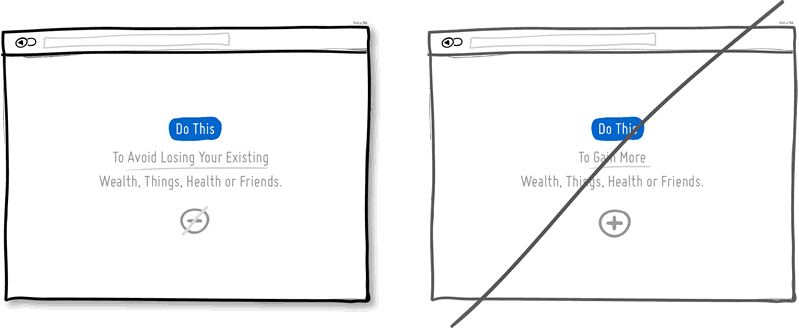
Try Loss Aversion instead of emphasizing gains.
We like to win, but we hate to lose. According to the rules of persuasive psychology,
we are more likely to prefer avoiding losses than to acquiring gains.
This can be applied to how product offerings are framed and
communicated. By underlying that a product is protective of a customer’s
existing well-being, wealth or social status, such strategy might be
more effective than trying to provide a customer with something
additional which they don’t already have. Do insurance companies sell
the payout that can be gained after the accident or the protection of
the things we hold dear to us?
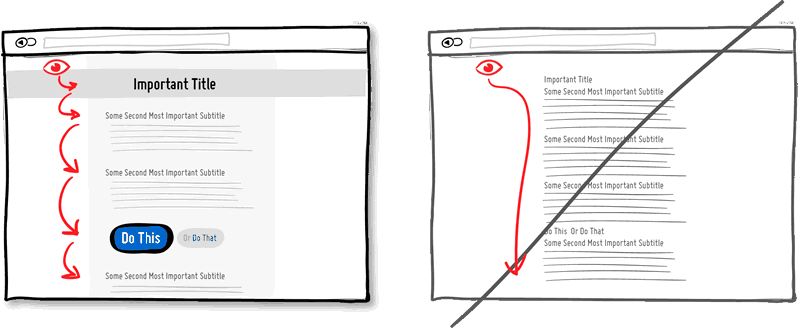
Try Visual Hierarchy instead of dullness.
A good visual hierarchy can be used to separate out your important
elements from the less important ones. A visual hierarchy results from
varying such things as alignment, proximity, colour, tone, indentation,
font size, element size, padding, spacing, etc. When these visual
language elements are applied correctly, they can work together to
direct and pause people’s attention within a page - improving general
readability.
A visual hierarchy can be said to generate friction and slows us down
from skimming through the full page top to bottom - for the better that
is. With a good visual hierarchy, although we might spend a bit more
time on the page, the end result should be that we register more items
and characteristics. Think of it as as road trip. You can take the
highway and get to your destination quicker (bottom of page), or you can
take the scenic route and remember more interesting things along the
way. Give the eye a place to stop.
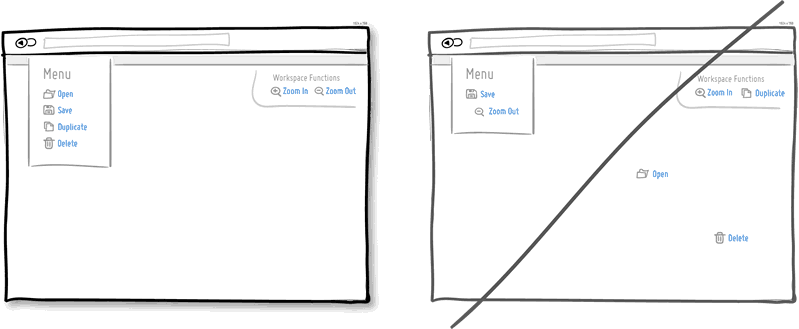
Try Grouping Related Items instead of disordering.
Grouping related items together is a basic way of increasing fundamental
usability. Most of us tend to know that a knife and a fork, or open and
save functions can typically be found more or less together. Related
items are just meant to be placed in proximity of each other in order to
respect a degree of logic and lower overall cognitive friction. Wasting
time looking for stuff usually isn't fun for people.
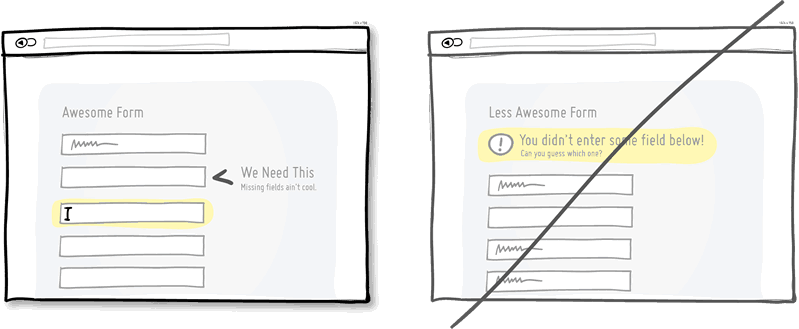
Try Inline Validation instead of delaying errors.
When dealing with forms and errors, it’s usually better to try to detect
if something isn’t correct and show it sooner rather than later. The
famous interaction pattern highlighted here of course is inline
validation. By showing an error message as it happens (say to the right
of the input field), it can be corrected right then and there as it
appears in context. On the other hand, when error messages are displayed
later on (say after a submit), it forces people to do some additional
cognitive work of having to recall what they were doing from a few steps
back.
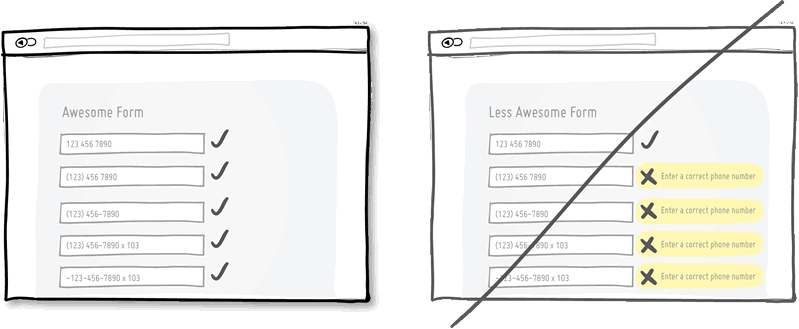
Try Forgiving Inputs instead of being strict with data.
Being more forgiving in terms of user entered data, computers can move
one step closer towards becoming a bit more humane. Forgiving inputs
anticipates and understands a variety of data formats and thereby makes
your UI more friendly. A perfect example of this is when we ask people
for a phone number which can be entered in so many different ways - with
brackets, extensions, dashes, area codes, and on. Have your code work a
bit harder so that your users won’t have to.
More On The Way. Sign Up Below For The Newsletter.
